



You may want to turn off IIS on Windows Home 11 when troubleshooting Windows features. You may also want IIS removed when you no longer use local web services. Windows gives you built-in controls for managing optional components, so you can check your current setup without installing another tool.
What Is IIS?
IIS stands for Internet Information Services. It is Microsoft’s web server technology for Windows. Developers commonly use IIS for local websites and web applications.
However, IIS is not required for normal everyday Windows use. If you do not need its web services, you can disable the related components.
Here is how to check IIS and remove the available IIS features from your Windows 11 PC.
Is IIS Available On Windows 11 Home?
Before changing anything, check what Windows actually shows on your PC. Windows editions can expose different optional components. Your installed configuration can also affect what appears.
The easiest approach is opening the Windows Features panel. You can then see if Internet Information Services appears there. If IIS does not appear, there may be nothing to disable through this menu.
If it appears and has enabled components, you can turn them off individually.
How To Turn Off IIS On Windows Home 11 (Step-by-Step)
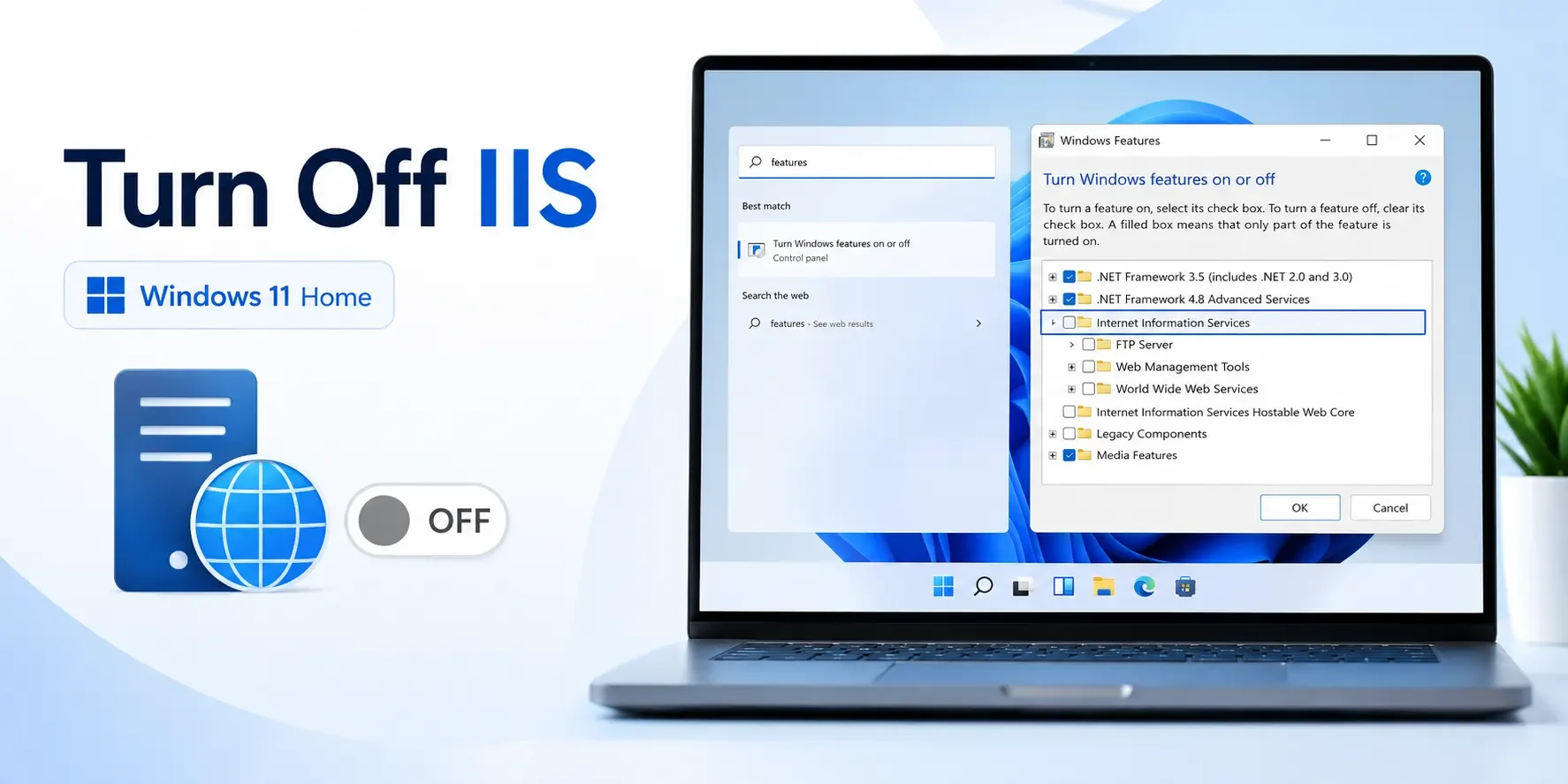
The Windows Features menu is the simplest place to start.
You need to follow these steps:
- Press the Windows key.
- Search for Turn Windows features on or off.
- Open the matching Control Panel result.
- Look for Internet Information Services.
- Clear its checkbox if it is selected.
- Click OK.
- Let Windows apply the requested changes.
- Restart your PC if Windows asks.
After restarting, check Windows Features again. The IIS option should no longer be selected if Windows completed the change successfully.
Check The IIS Subfeatures Before Disabling It
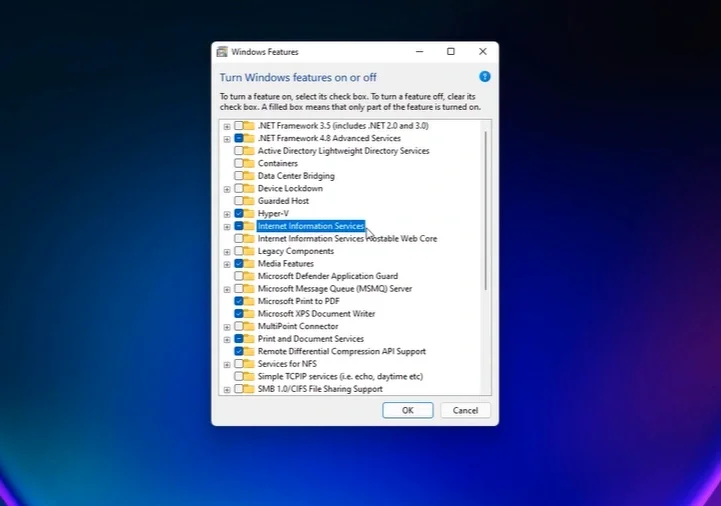
The main IIS entry can contain additional components. Click the small expansion control beside Internet Information Services. You can then inspect its available subfeatures.
A partially selected checkbox can indicate that only certain components are active. If that happens, review the expanded list carefully.
You can clear the entire IIS selection when you want all enabled IIS components removed. Alternatively, clear only the component you no longer need. This gives you more control than manually removing files.
How To Disable IIS On Windows 11 Through Optional Features
You should first distinguish Windows Features from the newer Optional Features interface.
Search Windows for Optional features and open the relevant Settings page. Review the installed optional components shown there. Look for IIS-related entries if they are available on your system.
Select the unwanted component and use the available removal option. Your exact list can depend on the Windows configuration currently installed. For that reason, do not remove unrelated features simply because their names sound technical.
Restart Windows After Removing IIS
Windows may need a restart after changing system components. You need to save your work before restarting.
Once Windows starts again, open the Windows Features panel. Check the Internet Information Services entry.
It should remain unchecked after a successful removal. This verification matters when you disable IIS on Windows 11 because it confirms Windows applied your selection.
Read More At: Difference Between Windows OEM vs Retail
Check If IIS Is Still Running
You might disable the main IIS feature but still suspect something is running. You can start by checking the Windows Features menu again. Expand the IIS section if it remains visible. Look for any selected subcomponents.
If something remains enabled, clear that specific option and apply your changes. Do not start deleting Windows folders manually. Windows Features provides the safer built-in route for controlling these components.
Why Turn Off The IIS?
You should turn off the IIS when you no longer need the services it provides. Perhaps you previously enabled IIS for local development. That requirement may no longer exist.
You might also be troubleshooting a local server configuration. Removing IIS can help you return that Windows feature to a disabled state. However, you should check your current work before disabling anything.
A local project may depend on IIS. Turning it off could stop that project from working as expected.
Can You Remove IIS From Windows 11 Completely?
You can use Windows Features to remove IIS from Windows 11 when the relevant components are enabled.
Open the feature list and clear Internet Information Services. Expand its options to check for selected subfeatures. Apply the changes and restart when required. You should use Windows controls instead of manually deleting IIS-related system files.
Windows manages these features as operating system components. Manual deletion can leave an incomplete configuration behind.
What If The IIS Checkbox Is Already Empty?
An empty checkbox changes the situation. It means the main IIS option shown in that Windows Features panel is not currently selected.
You therefore do not need to disable that specific entry again.
If you are troubleshooting something that behaves like a local web server, the cause may be elsewhere. Do not repeatedly enable and disable IIS without knowing what you are trying to fix.
Instead, confirm which application or Windows component is actually involved.
Also Read: What Is Safe Mode Windows 11? Explained
How To Enable IIS Again Later
Disabling IIS does not mean you can never use it again.
- Return to Turn Windows features on or off.
- Find Internet Information Services and select the components your setup requires. Then click OK and let Windows apply the changes.
- Restart your PC if prompted.
Wrapping Up!
The easiest way to turn off IIS on Windows Home 11 is through Windows Features. Search for the feature management panel and locate Internet Information Services. Clear the enabled selection and apply your changes.
You should also inspect its subfeatures before finishing. This helps you identify anything that remains selected.
Most importantly, use Windows' built-in feature controls. Avoid manually deleting system files when trying to remove IIS from Windows 11.
FAQs
Does Turning Off IIS Delete My Personal Files?
Turning off a Windows feature is different from deleting your personal documents. Still, back up important development projects before making system changes.
Can I Use Windows Normally Without IIS?
Normal desktop tasks do not require you to run an IIS web server. Your other software requirements may differ.
Why Does Windows Ask For A Restart After Changing Features?
Some Windows component changes cannot finish while related system resources are active. A restart lets Windows complete those pending changes.
Can I Turn IIS Back On After Several Months?
You can return to Windows Features later and select the required IIS components again.
Should I Delete IIS Folders After Disabling The Feature?
Do not manually delete Windows system folders just to remove a feature. Let Windows manage its own components through the available controls.