
Classé
Basé sur
53,801+
53.8k
avis
Téléchargement instantané
Garantie de remboursement à 100 %
Assistance 24 heures sur 24
 Windows PC
 Worldwide
 Instant Download
Fast Mover 96+ Vendu
Téléchargement instantané
Garantie de remboursement à 100 %
Fast Mover 96+ Vendu
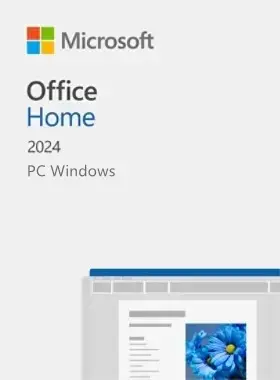
Microsoft Office 2024 Home Retail PC
Windows PC
Worldwide
Instant Download
This product is for PC Windows only and it is NOT binding to Microsoft account.
THIS KEY MUST BE REDEEMED WITHIN 20-DAYS FROM PURCHASE.
The essentials to get it all done. Office Home 2024 is for students and families who want classic Office apps including Word, Excel, and PowerPoint for Windows 11 and Windows 10. A one-time purchase installed on 1 PC for use at home or school.
KEY BENEFITS:
- One-time purchase for 1 PC
- Classic 2024 desktop versions of Word, Excel, PowerPoint, and OneNote
- Access to support resources
- Compatible with Windows 11, Windows 10, or macOS*
- For non-commercial use
- Works with Microsoft Teams
*Go to Office 2024 System Requirements for compatible versions of Windows 11, Windows 10, and macOS and for other feature requirements.
Microsoft 365 is a subscription that comes with premium apps like Word, Excel, PowerPoint, OneNote, Outlook, Publisher, and Access (Publisher and Access available on PC only). The apps can be installed on multiple devices, including PCs, Macs, iPads, iPhones, Android tablets, and Android phones. Microsoft 365 also comes with services like 1 TB of OneDrive storage, 60 Skype minutes per month, and Microsoft chat and phone support. With a subscription, you get the latest versions of the apps and automatically receive updates when they happen.
Office 2024 is a one-time purchase that comes with classic apps like Word, Excel, and PowerPoint for PC or Mac, and does not include any of the services that come with a Microsoft 365 subscription. One-time purchases don’t have an upgrade option, which means if you plan to upgrade to the next major release, you'll have to buy it at full price.
Learn more about the differences between Microsoft 365 and Office 2024 in Office Support, or use the comparison chart to help you pick the right Office version for your needs.
You can check if your device can support your version of Office by viewing the full Office system requirements.
No. Office applications are tailored to work best on each platform and device. The Office applications available for Mac users and the version numbers may be different from those available for PC users.
Office 2024, Microsoft 365, Office 2021, Office 2019, Office 2016, Office 2013, Office 2010, Office 2007 applications can open your documents without any additional action. Customers using earlier versions of Office may need to download and install a compatibility pack.
Internet access is required to install and activate all the latest releases of Office suites and all Microsoft 365 subscription plans. For Microsoft 365 plans, Internet access is also needed to manage your subscription account, for example to install Office on other PCs or to change billing options. Internet access is also required to access documents stored on OneDrive, unless you install the OneDrive desktop app. You should also connect to the Internet regularly to keep your version of Office up to date and benefit from automatic upgrades. If you do not connect to the Internet periodically, your applications will go into reduced functionality mode, which means that you can view or print your documents, but cannot edit the documents or create new ones. To reactivate your Office applications, simply reconnect to the Internet.
You do not need to be connected to the Internet to use the Office applications, such as Word, Excel, and PowerPoint, because the applications are fully installed on your computer.
Users can activate 1 subscription for Microsoft 365 Family and Microsoft 365 Personal and up to 25 licenses for Office Home 2024, Office Home & Business 2024, and Office Professional 2021.
The product key is valid for 1 install only and it does NOT bind to your Microsoft account. If you require to reinstall or change your system please purchase another key.
NOTE: Before you install, it is very important to uninstall all previously installed Office versions. To do this, download Microsoft Support and Recovery Assistant, then follow the Microsoft Office uninstallation guide and select Option 2 Completely uninstall office with the uninstall support tool. Note: Uninstalling Office won't remove your files, documents, or other user data.
please proceed to https://setup.office.com/ and select Sign in or create a new Microsoft account.

Then enter the 25-digit product key we provided you, which you will find in your EF Dashboard , then proceed to My Orders


The product by clicking Next, then Download Now.

you will be redirected to https://account.microsoft.com/services. Click Install next to the product that you wish to install on the current PC you are using.

You can click Other Options to choose between the 32 and 64-bit versions as well as to select your preferred language.
Click the downloaded file at the lower-left portion of your browser and then click Yes to allow the app to make changes to your device

Click the Close button, then open any Microsoft Office application such as Word/Excel/Powerpoint. If you could not find the Office app or shortcut, please follow instructions in Office App Icon/Shortcut is Missing

It will keep your product up to date.

Congratulations! Your Office is now activated!
Soyez le premier à donner votre avis sur ce produit !



Receive 100% genuine software keys, backed by our Flawless Activation guarantee for complete peace of mind.
Your software key is delivered directly to your email inbox within seconds of completing your purchase. No waiting.
Our dedicated support team is available around the clock via live chat and email to assist with installation and activation.
Our 30-day money-back guarantee ensures a fast refund or replacement if your key is faulty or incompatible.
The price you see is the final price you pay. No hidden service fees or surprise charges at the checkout.
Earn valuable points with every purchase and redeem them for real discounts on future software.
A proven track record with thousands of verified, positive reviews from real customers across the globe.
Pourquoi nos clients nous aiment
Classé « Excellent »
Saved a ton on Office 2021. Got my key immediately and it activated without a hitch. EF is the real deal!
by Verified Buyer
Bought a PS Plus membership, code in seconds. Had a minor issue, support resolved it fast. Very impressed!
by Verified Buyer
Doubted a deal this good, but a friend insisted. My Windows 10 Pro key arrived instantly and works perfectly.
by Verified Buyer
Bought Office 2021 at 2am and got my key immediately. I didn’t expect delivery at that hour. Outstanding!
by Verified Buyer
Overseas but still got my code instantly. Xbox Live Gold code redeemed with no region issues. Impressed!
by Verified Buyer
Got Windows 10 Pro & Office 2021 far cheaper than retail. Both keys arrived instantly and activated fine.
by Verified Buyer
Got a Steam game key cheap. Code came instantly, I was playing within minutes of purchase. Can’t beat that!
by Verified Buyer
Bought Windows 11 Pro dirt cheap. Key arrived instantly and activated without issues. Truly 100% legit!
by Verified Buyer
First purchase, was cautious. Fast delivery and legit PS Plus code won me over. I’ll be a repeat buyer.
by Verified Buyer
Bought an Amazon gift card at a discount. Code arrived in seconds and worked perfectly. A lifesaver!
by Verified Buyer
Bought an Xbox Game Pass code at an unbeatable price. Arrived in my email within seconds. Beyond satisfied!
by Verified Buyer
Windows 11 Pro key seemed too cheap. 80k+ reviews convinced me to try them. Code arrived instantly and worked.
by Verified Buyer
Gagnez des revenus supplémentaires sans effort
en rejoignant notre programme d'affiliation
Rejoignez l'EF Army pour bénéficier d'avantages exclusifs pour les membres
Votre panier est vide !
Add your favourite games & software to get started.
Voir les meilleures ventes





Convert coins into real savings at checkout!
Check Dashboard New here? INSCRIVEZ-VOUS & Track ProgressEarn EF Coins by completing tasks — build up your balance and turn them into wallet credit!

Devenez membre de la communauté EF

Acheter un produit

Personnalisez votre surnom

Ajouter une photo de profil

Ajouter un produit à la liste de souhaits

Précommandez un produit

Achetez 10 produits

Achetez 20 produits

Membre depuis plus de 6 mois

Membre depuis plus d'un an

Laisser un commentaire
Every 10,000 EF Coins = $1 Credit
PARTAGEZ